User Query
The User Query is LIneA's web-based SQL interface for querying astronomical databases. It allows you to run queries against public survey catalogues (such as DES DR2 and Gaia DR3), save results to your personal workspace, and export data in various formats.
Tables you create are stored in MyDB, your private database space. These tables can be accessed immediately from LIneA's JupyterHub or remotely via TAP Service. If your table includes sky coordinates (RA/Dec) and unique identifiers, it automatically becomes available in Target Viewer for image visualization.
Web Interface
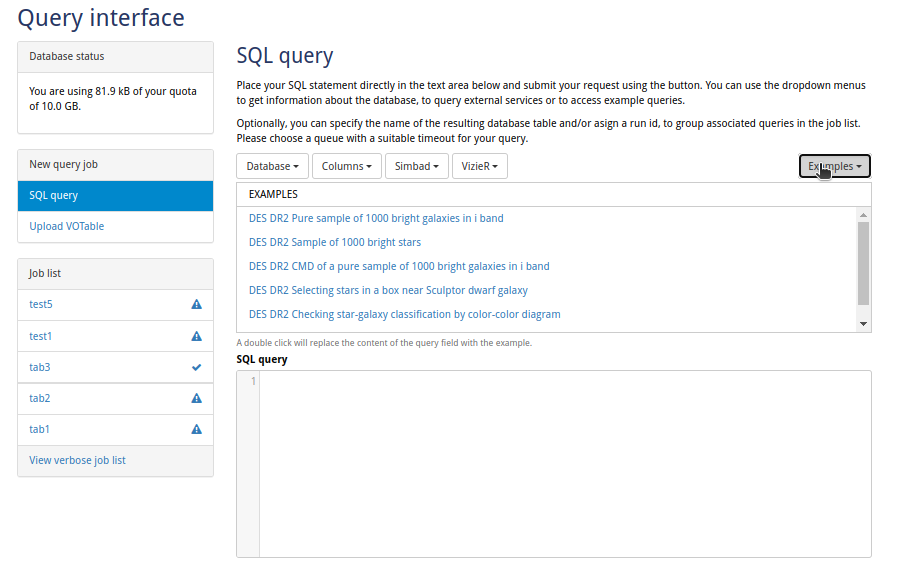
When you open User Query, you'll see the main query interface divided into three areas: the sidebar on the left showing your storage quota and job history, the SQL editor in the center where you write queries, and the toolbar at the top with database browsing tools and example queries.
Writing and Submitting Queries
To run a query:
- Write your SQL in the editor, or click the Examples dropdown to load a pre-built query
- Choose the SQL dialect:
ADQLfor standard VO queries orPostgreSQLfor advanced features - Select a queue based on how long your query might take
- Click "Submit" to run the query
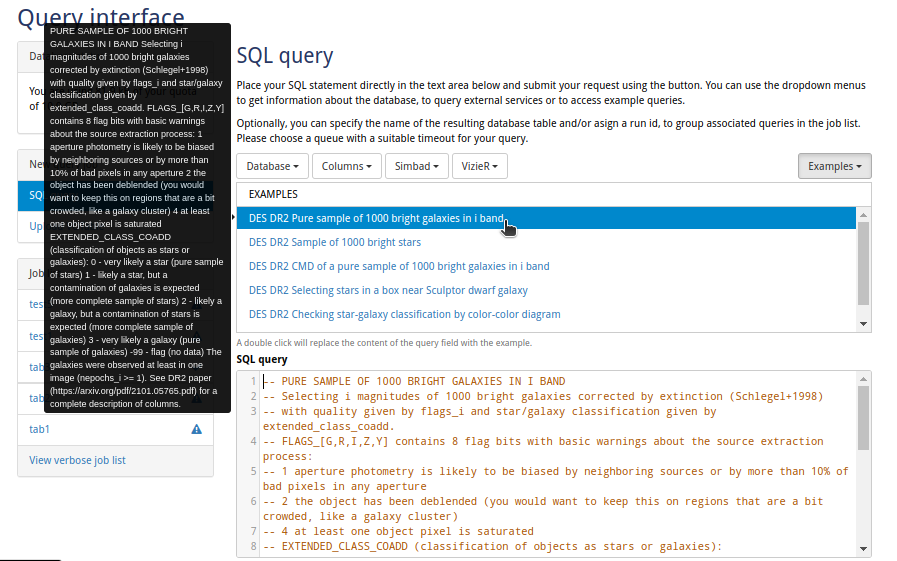
The screenshot below shows an example query loaded from the Examples menu. Notice how selecting an example populates both the SQL editor and displays a description of what the query does in the tooltip.
Query Options
Before submitting, configure your query execution:
| Option | Description |
|---|---|
| Queue | Choose based on expected runtime: 30 seconds for quick tests, 5 minutes for joins and filters, or 2 hours for large crossmatches. The query aborts if it exceeds the time limit. |
| Table name | Name for the result table (defaults to a timestamp if left blank). |
| Run ID | Optional label to group related queries together in the Job list—useful for organizing queries by project or analysis task. |
Managing Results
Completed queries appear in the Job list on the left sidebar. Click any job to:
- View results in an interactive table
- Create plots from numeric columns
- Download in CSV, VOTable, or FITS format
- Archive to free up quota space
Your personal storage quota is 10 GB.
Download Formats
Export your results from the Download tab:
| Format | When to use |
|---|---|
| CSV | Spreadsheets, general-purpose scripts |
| VOTable | Interoperability with VO tools like TOPCAT |
| FITS | Astronomy pipelines, archival storage |
TAP Service
For automated workflows, reproducible analyses, or accessing embargoed data, you can query LIneA databases directly from Python using the TAP Service (Table Access Protocol) and the pyvo library.
Getting Your API Token
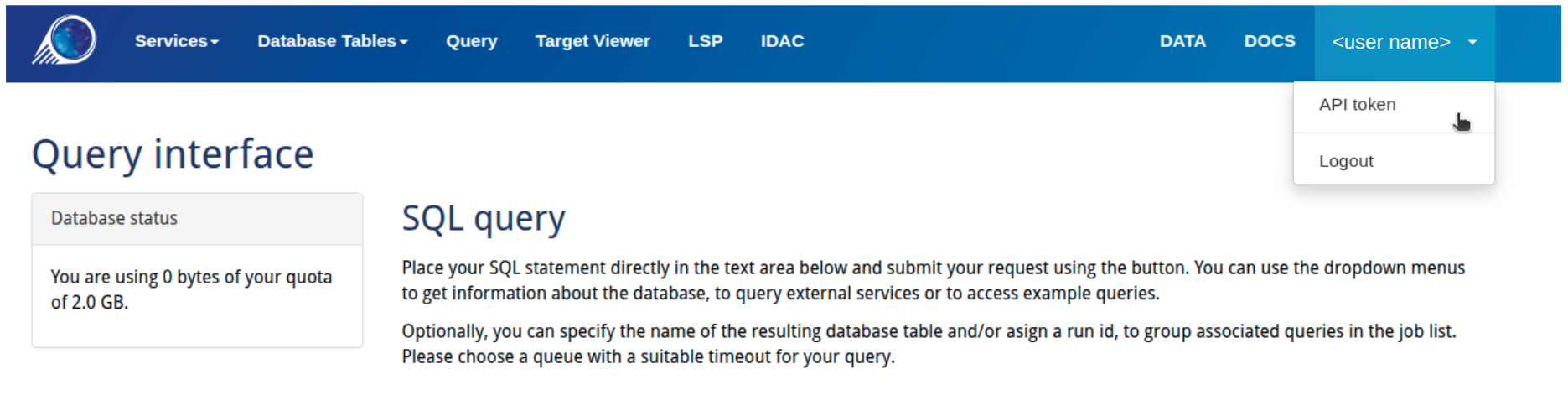
To access restricted catalogues (such as LSST data products), you need an API token. In the User Query interface, click on your username in the top-right corner of the navigation bar to open the dropdown menu, then select "API token".
Keep your token secure
Your API token grants access to your account and any restricted data you're authorized to view. Never share it or commit it to public repositories.
Setup
Install the required libraries:
pip install pyvo requests
Query language
The examples below use ADQL syntax (e.g., SELECT TOP n instead of LIMIT n), which is the default. To use PostgreSQL syntax instead, add language="PostgreSQL" to your query calls:
result = tap.run_sync(query, language="postgresql")
Synchronous Queries
For quick queries that complete in under 30 seconds, use synchronous mode:
import pyvo
import requests

# LIneA TAP endpoint
url = "https://userquery.linea.org.br/tap"

# Your API token (get it from User Query → API Token)
token = "Token YOUR_TOKEN_HERE"

# Create authenticated session
session = requests.Session()
session.headers["Authorization"] = token

# Connect to TAP service
tap = pyvo.dal.TAPService(url, session=session)

# Run query
query = "SELECT TOP 100 ra, dec, mag_auto_g FROM des_dr2.main"
result = tap.run_sync(query)

# Convert to table and display
table = result.to_table()
print(table)
Asynchronous Queries
For larger queries that may take minutes or hours, use asynchronous mode. This approach is more robust—jobs survive network interruptions and don't have browser timeout limits.
Set the QUEUE parameter for long queries
By default, queries time out after 30 seconds. For longer queries, you must specify the QUEUE parameter when submitting the job:
"default"— 30 seconds"five_minutes"— 5 minutes"two_hours"— 2 hours
import pyvo
import requests
import time
from io import BytesIO
from astropy.table import Table

url = "https://userquery.linea.org.br/tap"
token = "Token YOUR_TOKEN_HERE"

session = requests.Session()
session.headers["Authorization"] = token

tap = pyvo.dal.TAPService(url, session=session)

# Submit a long-running query
query = """
    SELECT TOP 500000
    ra, dec, mag_auto_g, mag_auto_r, mag_auto_i
    FROM des_dr2.main
    WHERE mag_auto_g < 20
"""

# QUEUE options: "default", "five_minutes", "two_hours" (default is 30 seconds)
job = tap.submit_job(query, QUEUE="two_hours")
job.run()
print(f"Job ID: {job.job_id}")

while job.phase not in ("COMPLETED", "ERROR", "ABORTED"):
    print(f"Status: {job.phase}", end="\r")
    time.sleep(5)

print(f"Status: {job.phase}")

if job.phase == "COMPLETED":
    print("Fetching the results...", end="\r")

    # Build the result URL manually to avoid PyVO link resolution issues
    result_url = f"{url}/async/{job.job_id}/results/result"

    # Fetches the result
    r = requests.get(result_url, headers=session.headers)
    table = Table.read(BytesIO(r.content), format='votable')
    print("Query completed successfully.")
else:
    print(f"Job failed with status: {job.phase}")

print(table)
When to use async
Use asynchronous queries when you expect the query to take more than 30 seconds, when running queries in batch scripts, or when you need to retrieve results later.
SQL Dialects
User Query supports two SQL dialects:
ADQL — The Astronomical Data Query Language, a VO standard with built-in geometry functions:
SELECT * FROM des_dr2.main
WHERE CONTAINS(POINT('ICRS', ra, dec), CIRCLE('ICRS', 53.0, -28.0, 0.5)) = 1
PostgreSQL — Native syntax with spatial extensions for advanced users. Both Q3C and PgSphere indexes are available:
-- Using Q3C (fast radial queries)
SELECT * FROM des_dr2.main
WHERE q3c_radial_query(ra, dec, 53.0, -28.0, 0.5)

-- Using PgSphere (spherical geometry operators)
SELECT * FROM des_dr2.main
WHERE spoint(radians(ra), radians(dec)) @ scircle(spoint(radians(53.0), radians(-28.0)), radians(0.5))
Both dialects work well—ADQL queries are automatically translated to optimized PostgreSQL internally.
Using TOPCAT
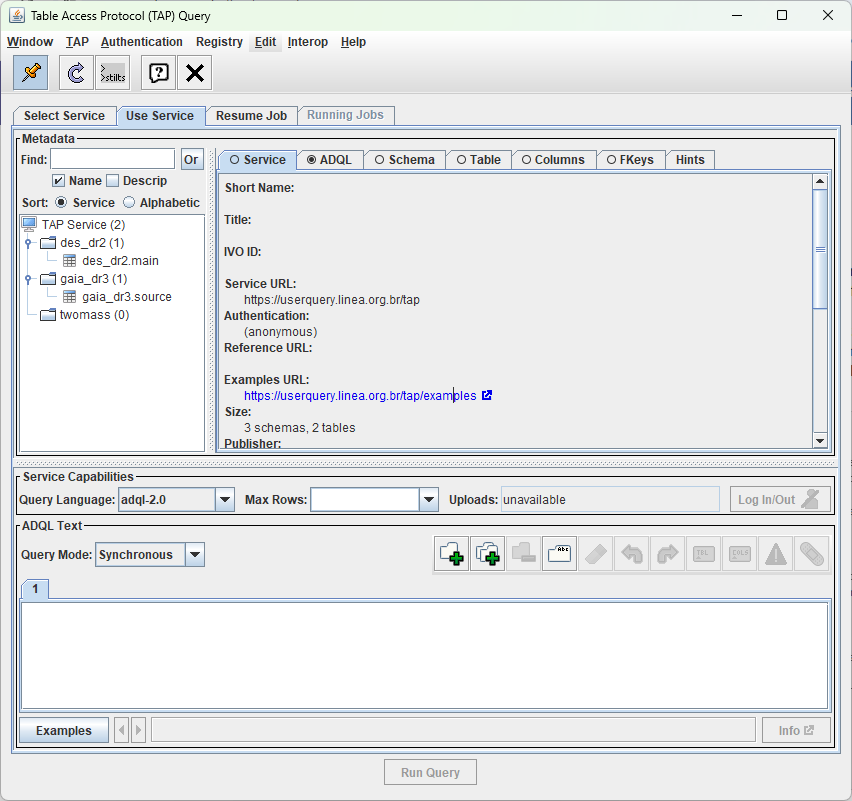
TOPCAT is a popular desktop application for working with astronomical tables. You can connect it to LIneA's public catalogues via TAP.
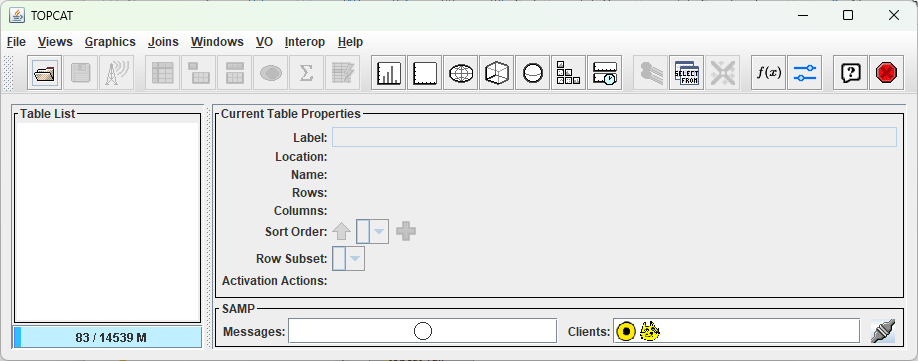
Step 1: Open the TAP query window from VO → Table Access Protocol (TAP) Query.
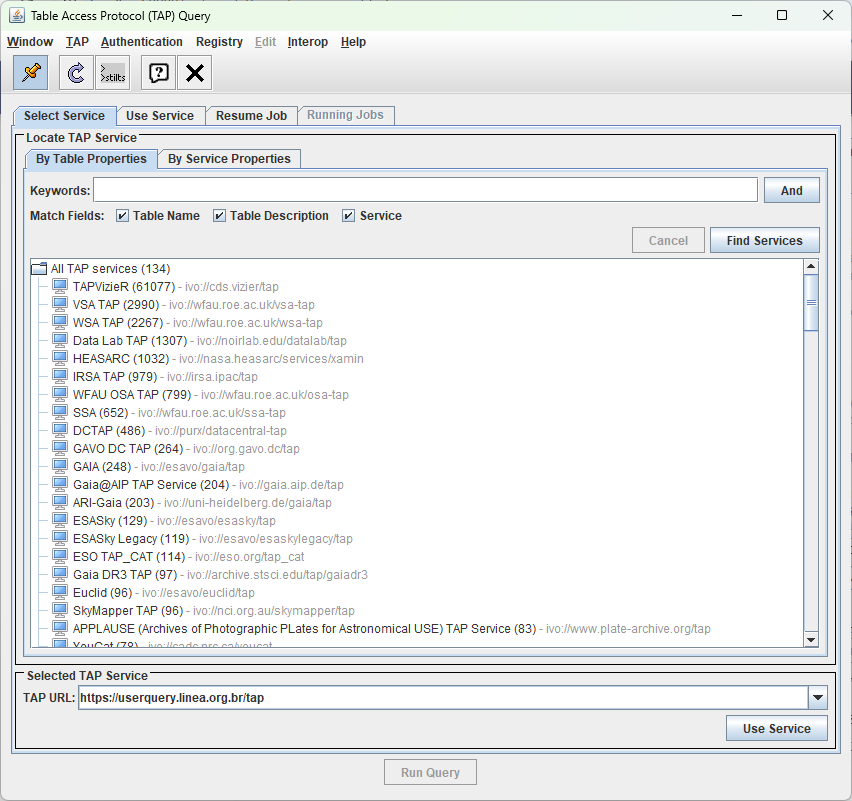
Step 2: Enter LIneA's endpoint URL in the TAP URL field at the bottom: https://userquery.linea.org.br/tap, then click "Use Service".
Step 3: Once connected, the left panel shows available schemas and tables. Click on a table to see its columns and metadata on the right. Use the Examples button to load sample queries, then click "Run Query" to execute.